Introduction
In DinoCapture 2.0, image information and user-generated content, such as magnification, measurements and drawings, are stored separately from the image. In DinoCapture 3.0, this data is embedded within the image. This guide explains how to export any image files from DinoCapture 2.0 into DinoCapture 3.0, ensuring that associated data is preserved and compatible with DinoCapture 3.0.
Preparation
Please verify that the installed DinoCapture software meets the required version:
• DinoCapture 2.0: version 1.5.57 or higher
• DinoCapture 3.0: version 1.1.1.7 or higher (Older versions may cause compatibility issues)
The latest versions can be downloaded from the official website: https://www.dino-lite.com/download01.php.
IMPORTANT:
Legacy product lines, including Dino-Lite Pro and Dino-Lite Plus, as well as models that require driver installation, are not supported by DinoCapture 3.0. Transferring files captured with these devices in DinoCapture 2.0 may also result in the loss of associated data.
Steps
1.
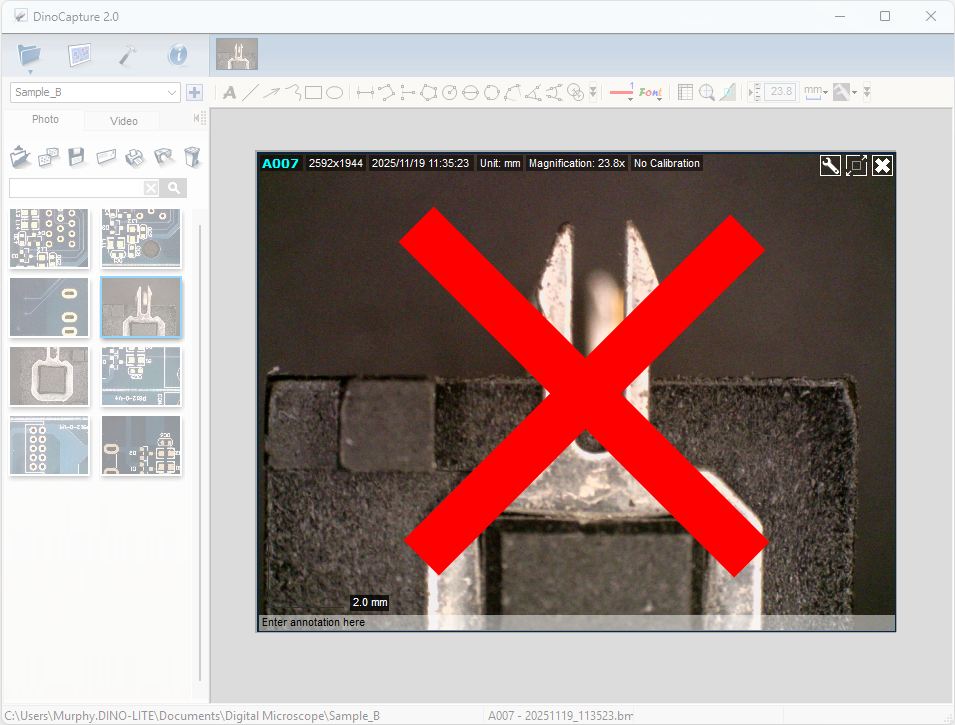
Open DinoCapture 2.0 without opening any files or connecting any devices.
2.
Use one of two export methods: export a folder or export selected files within a folder:
• Exporting a folder:
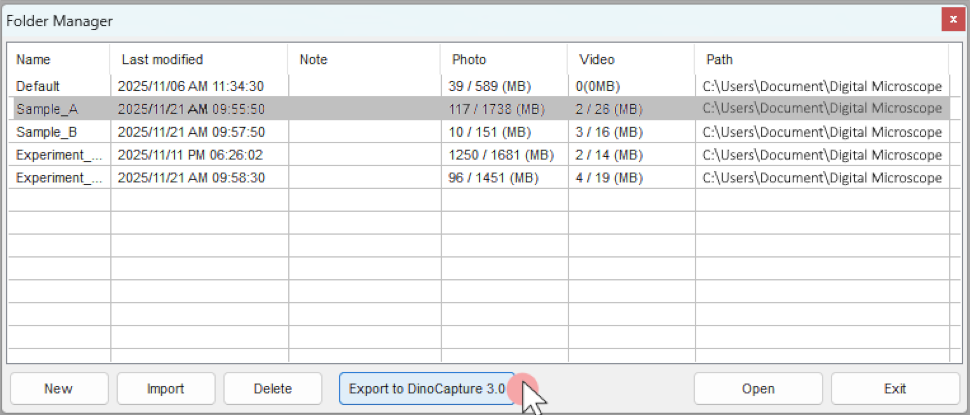
(1) Go to Folder > Folder Manager.
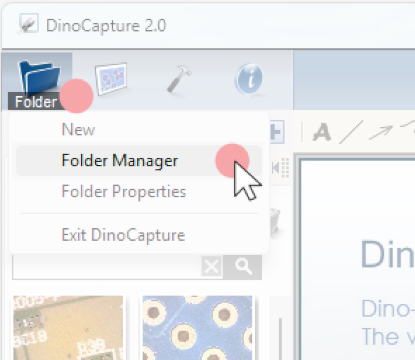
(2) Select a folder, and click Export to DinoCapture 3.0 (proceed to step 3).
• Exporting selected files:
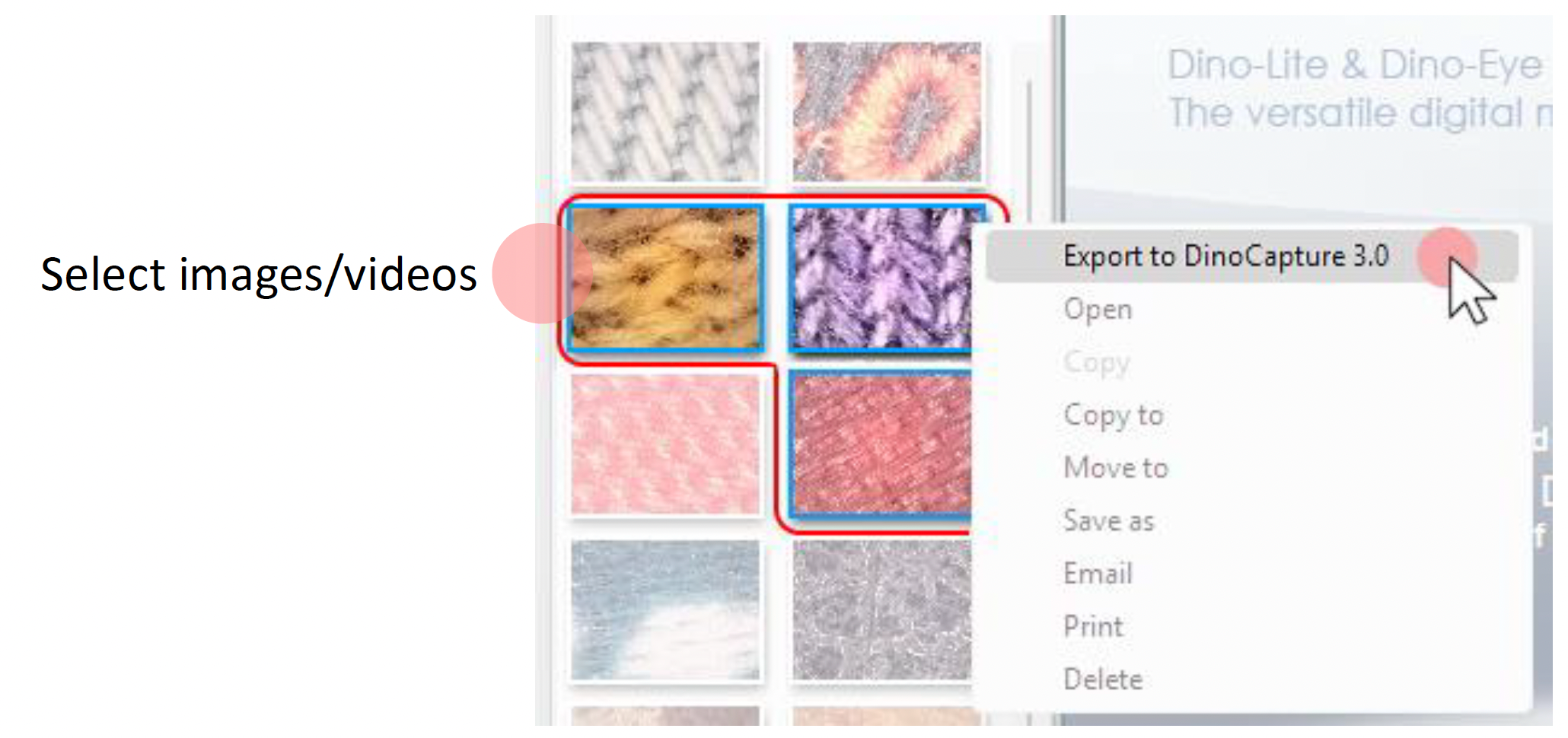
(1) From the image list, select images or videos.
(2) Right-click any of the selected images to open the right-click menu.
(3) Click Export to DinoCapture 3.0.
3.
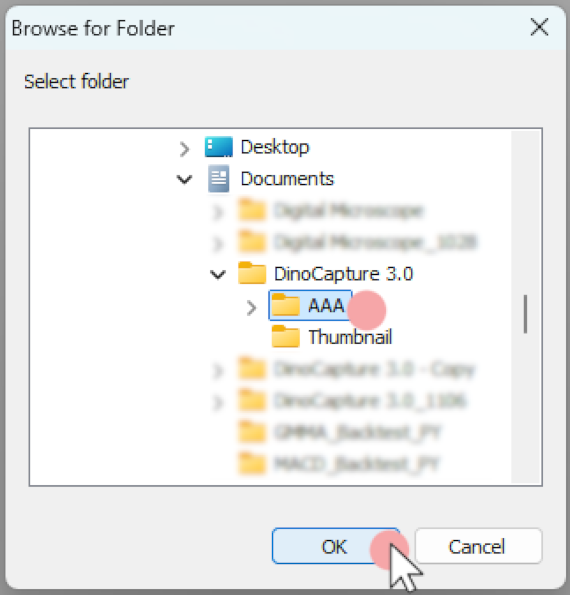
Exports must be saved under the DinoCapture 3.0 Home Directory.
In the Browse for Folder dialog, locate the DinoCapture 3.0 Home Directory, select a destination folder within it, and click OK to begin the process.
Note:
By default, the DinoCapture 3.0 Home Directory can be found at: System DriveUsers[User Name]DocumentsDinoCapture 3.0. If unsure whether the Home Directory path was changed at any point, open DinoCapture 3.0, click the Settings icon, navigate to the Capture section, and check the Home Directory path shown there.
4.
Click Close when the export process is complete.
5.
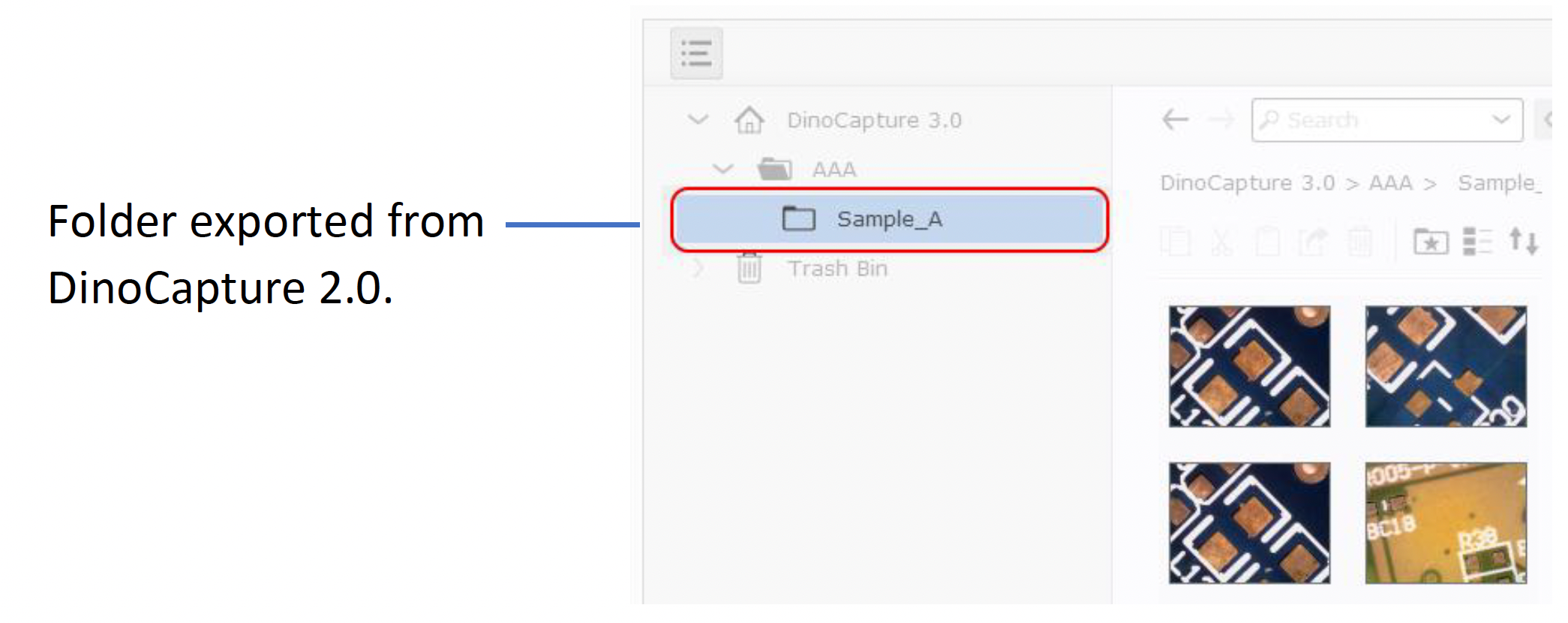
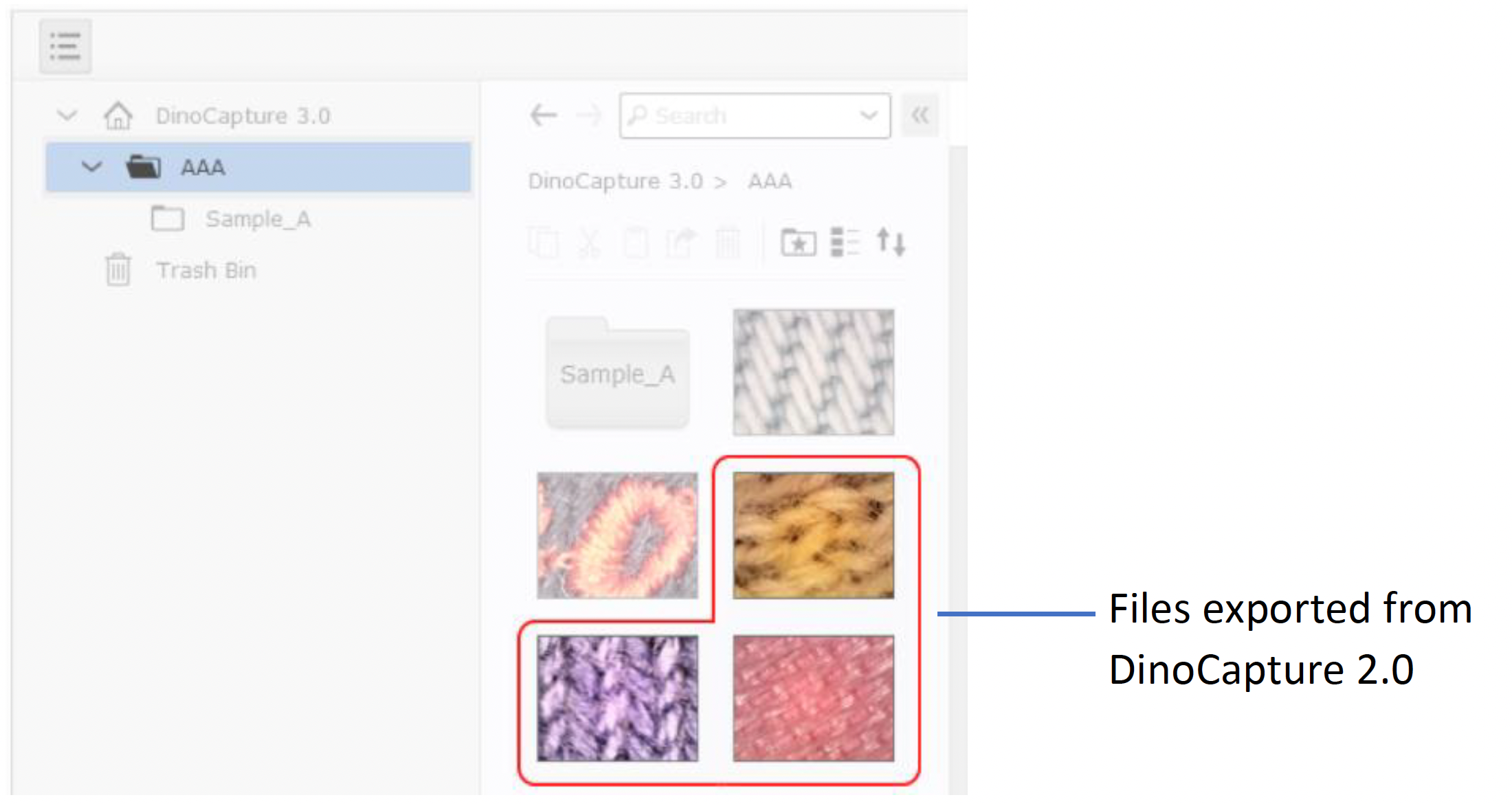
Restart DinoCapture 3.0 or press F5 to refresh the directory. The folders or files exported from DinoCapture 2.0 should appear in the destination folder, as shown below.